 GitHub
Make your next presentation.
Bring what you already have: old PowerPoint slides, a PDF, a Word document, a paper, or a page of notes. An AI assistant turns it into a clean, well-designed deck, and mdeck presents it in a web browser, with your notes, and sends it as one file or a PDF.
The content stays yours. The assistant works from your material, not from its own idea of the topic: it chooses layouts, tidies wording, moves detail into speaker notes and checks the file. You do not need to know how to program. The slides are a plain text file, so you can read every word, change any of it yourself, or ask for something different.
Make your first presentation Install mdeck
What you can do with it#
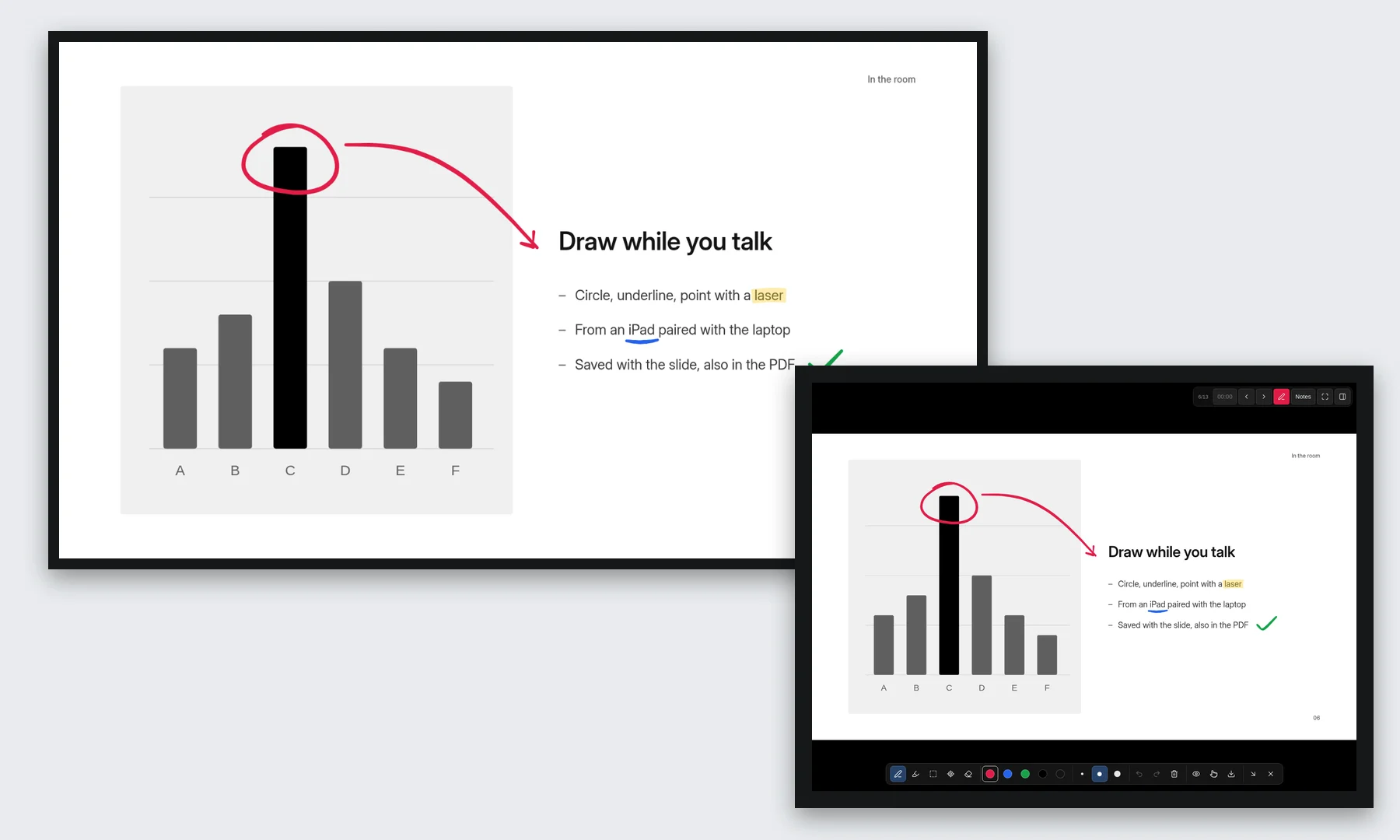
Draw on your slides, from an iPad if you like#
Circle a number, underline a phrase, point with a laser. Pair an iPad by scanning a code, and it becomes your presenter screen and drawing pad while the laptop drives the projector: every stroke shows on the big screen as you draw. Drawings are kept with the talk, in its PDF too. Draw on your slides
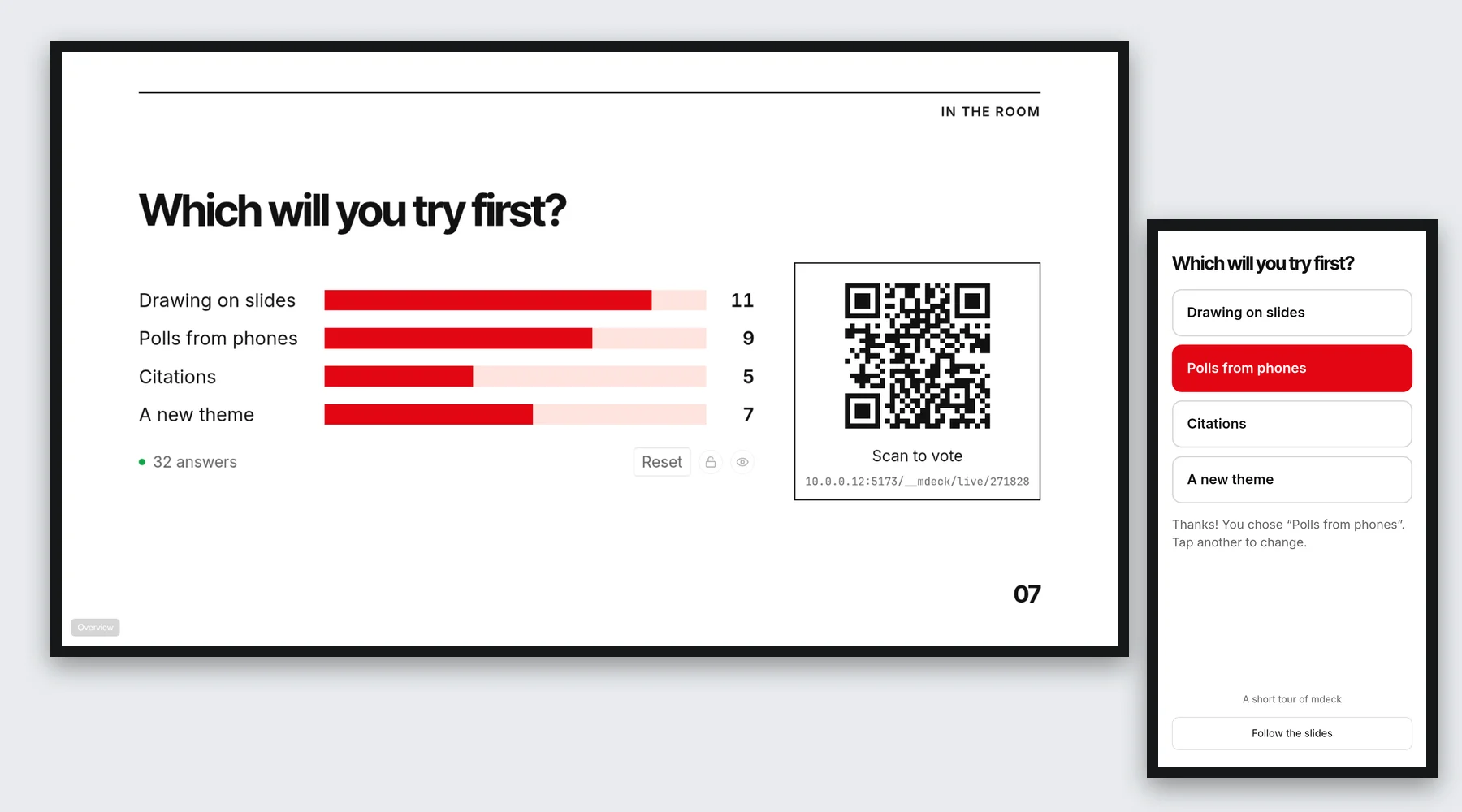
Ask the room, and show the answers on the slide#
Polls, scales, word clouds, open questions and numbers to guess. People scan the code and answer on their phones, no app needed, and the bars grow as votes come in. Close the vote, discuss, reveal the right answer. The answers are kept with the talk. Ask your audience
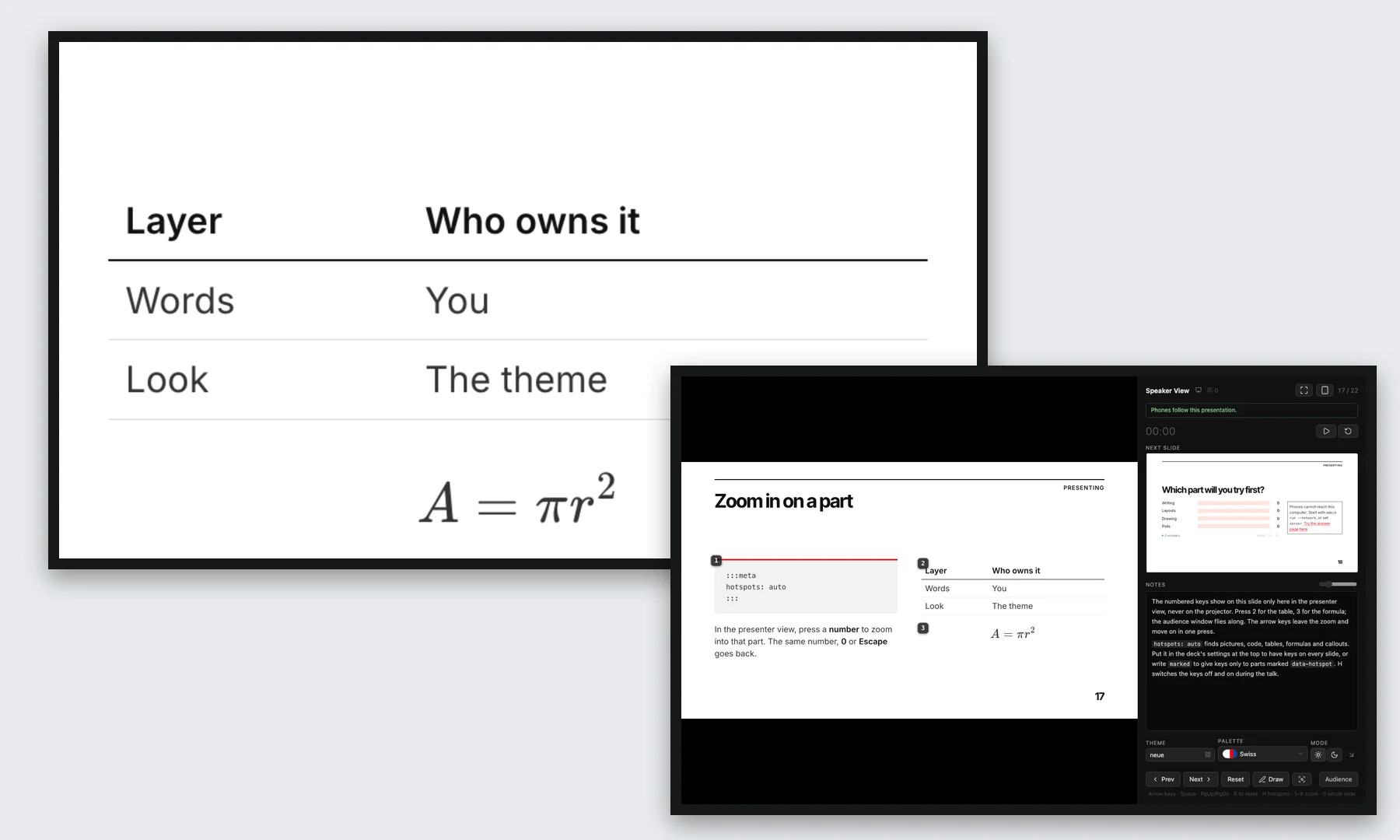
Zoom into a chart, a table or a line of code#
Turn on hotspots, and the presenter view puts a number on each picture, table, formula and code block. Press it, or tap it on an iPad, and the slide glides in until that part fills the projector; press it again to see the whole slide. Phones following the talk zoom along, and the audience never sees the numbers. Zoom in on part of a slide
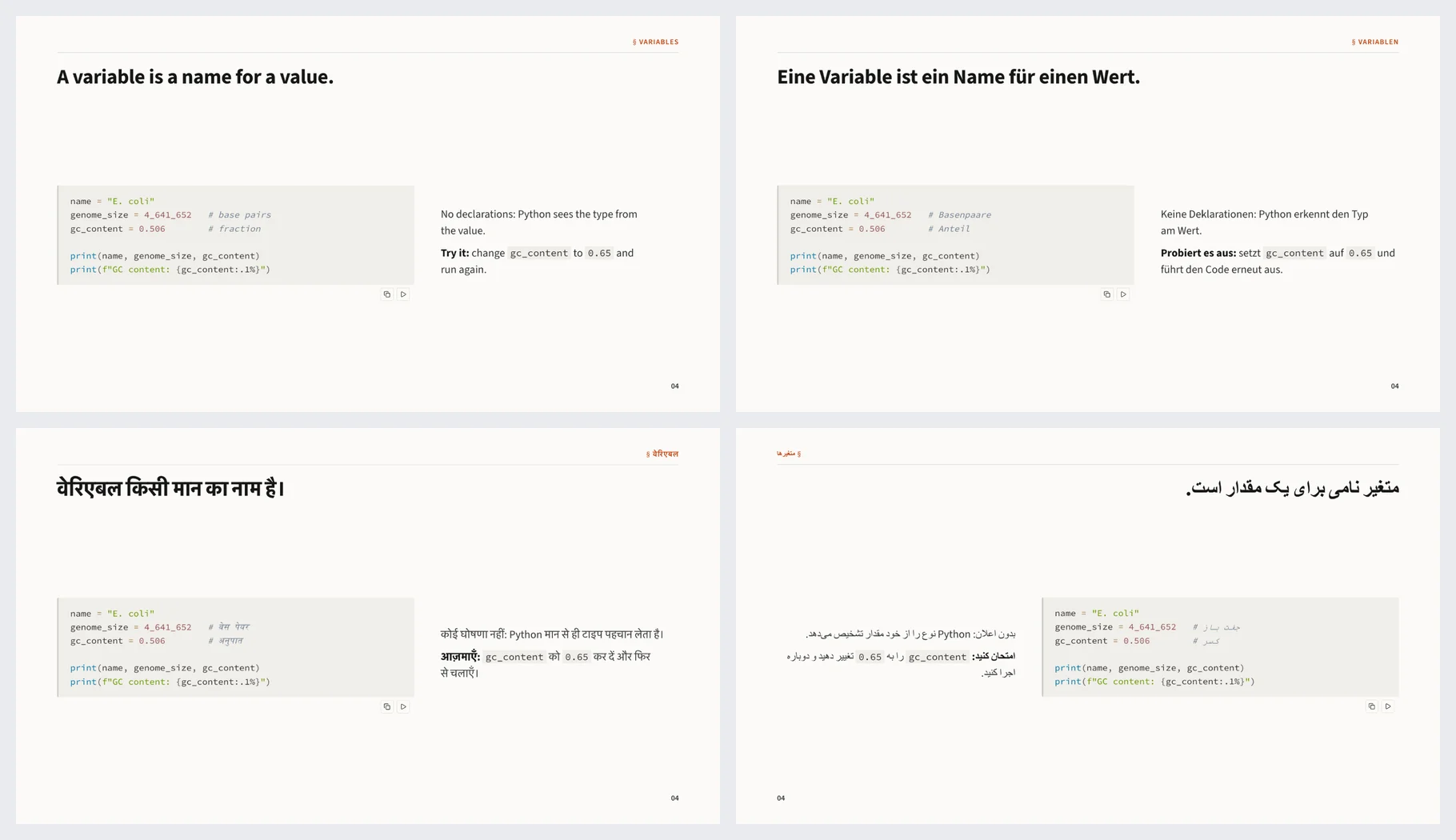
Give the talk in the room's language#
Keep the talk once per language, talk.en.md beside talk.de.md, and press L to switch in the middle of it: the slides, your notes and every screen change at once, and you stay on the same slide and step. Farsi, Arabic and Hebrew run right to left, with code and formulas left to right. One talk in several languages
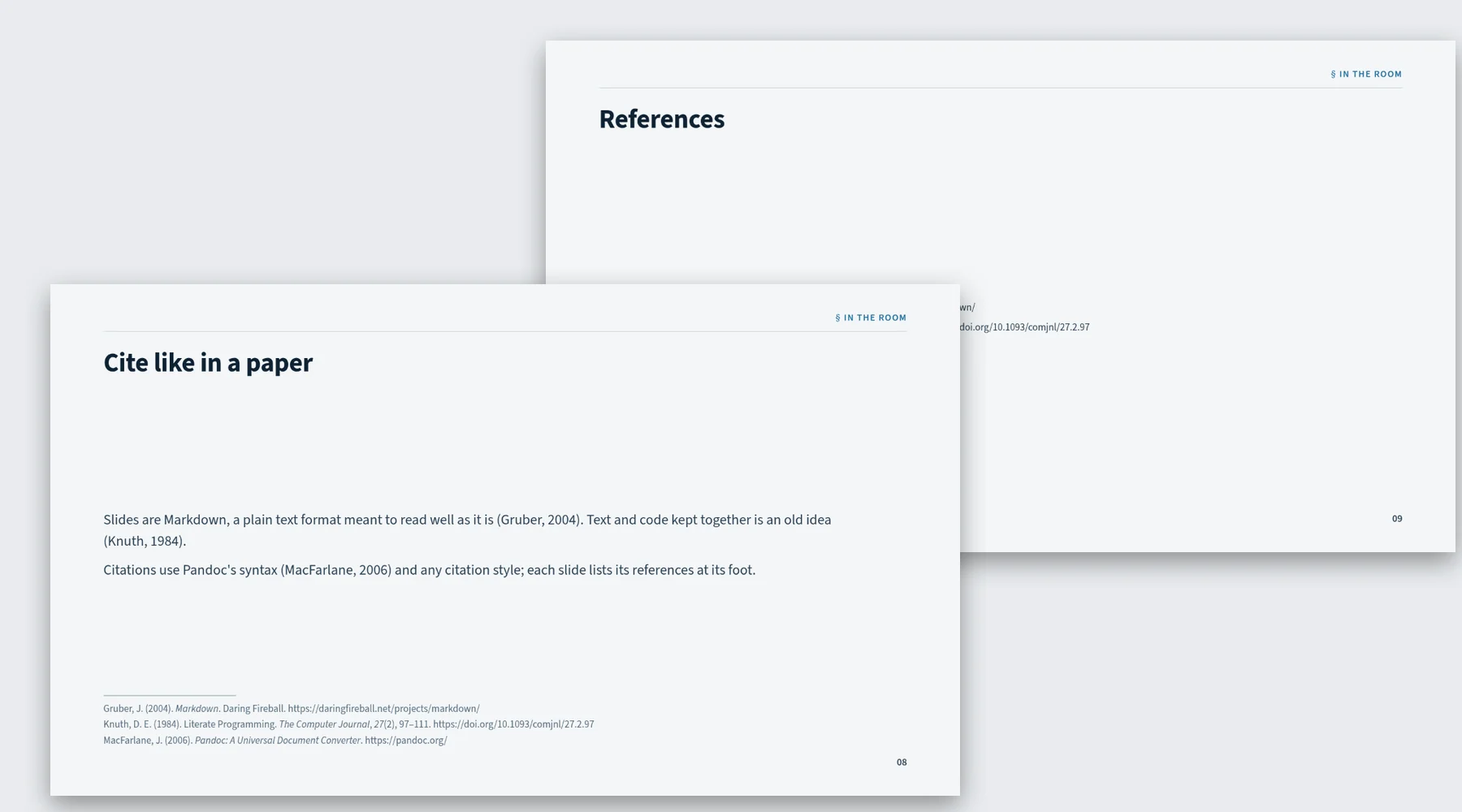
Cite your sources properly#
Cite as in a paper, [@knuth1984, p. 97], from the BibTeX, CSL-JSON or Hayagriva file you already keep. Each slide lists what it cites at its foot, and a references slide lists everything, in APA, Vancouver, Harvard or any CSL style. Cite a source
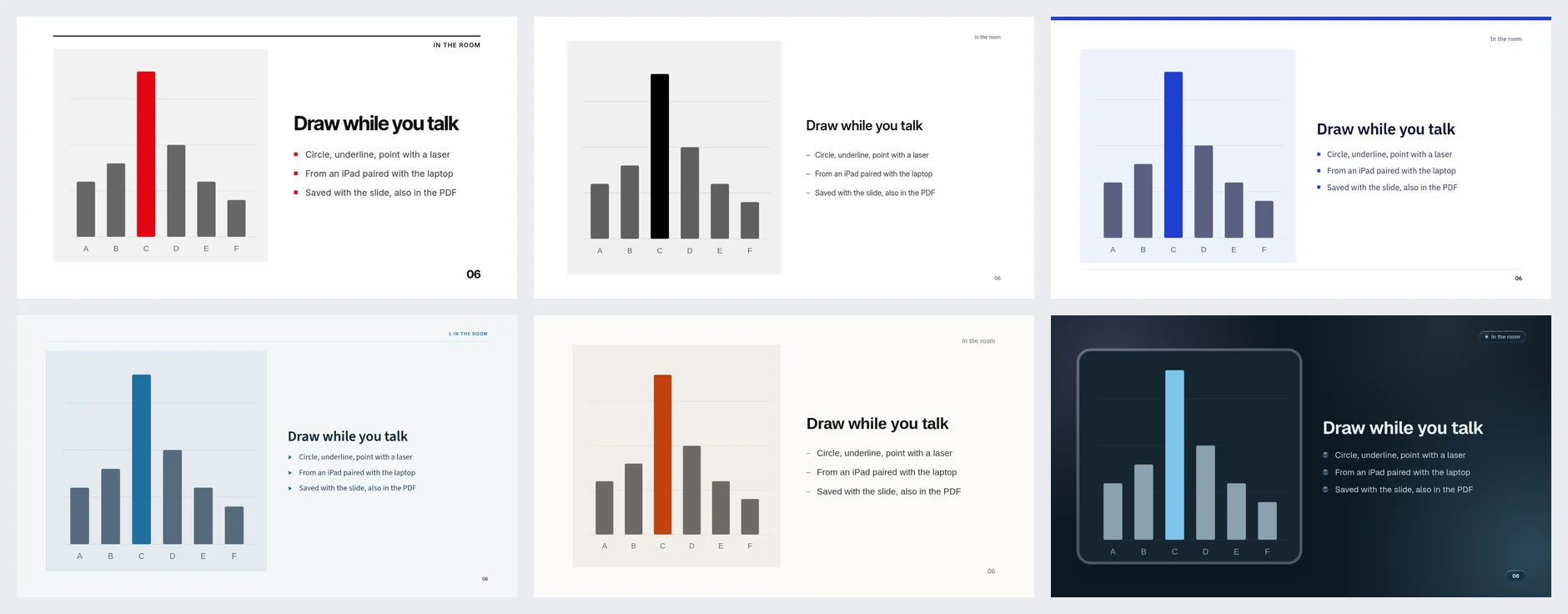
Write the content once, change the look anytime#
The file holds what you say; a theme and a palette decide how it looks. One line changes every slide, light or dark, and your text never moves. Six themes come with mdeck, more are one command away in the theme repository. Change the look
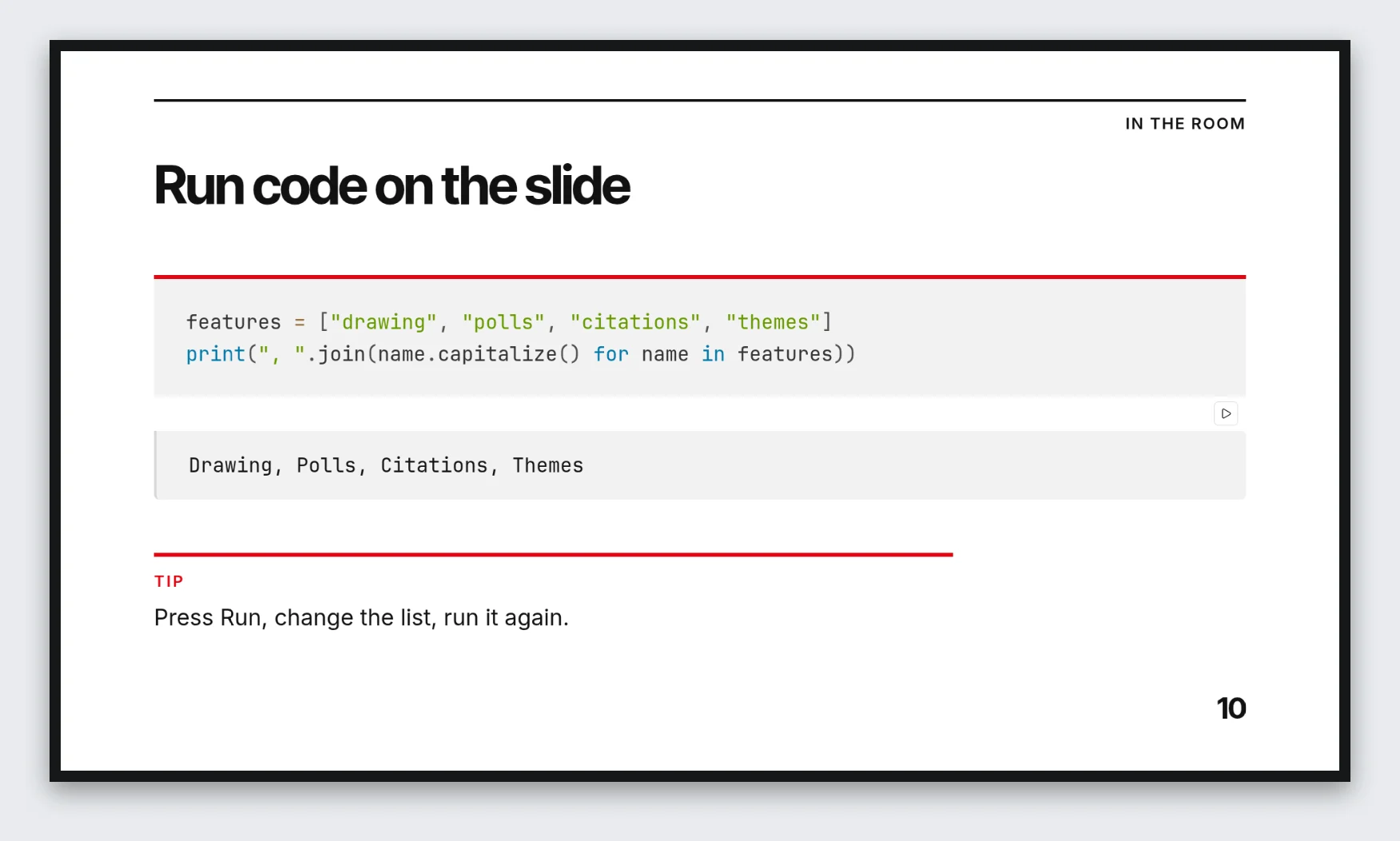
Run code on the slide#
Give a Python or JavaScript example a Run button, change it in front of the audience and run it again. Python runs right in the browser, with packages such as NumPy and pandas, so nothing needs installing. Show a code example
Send one file that anyone can open#
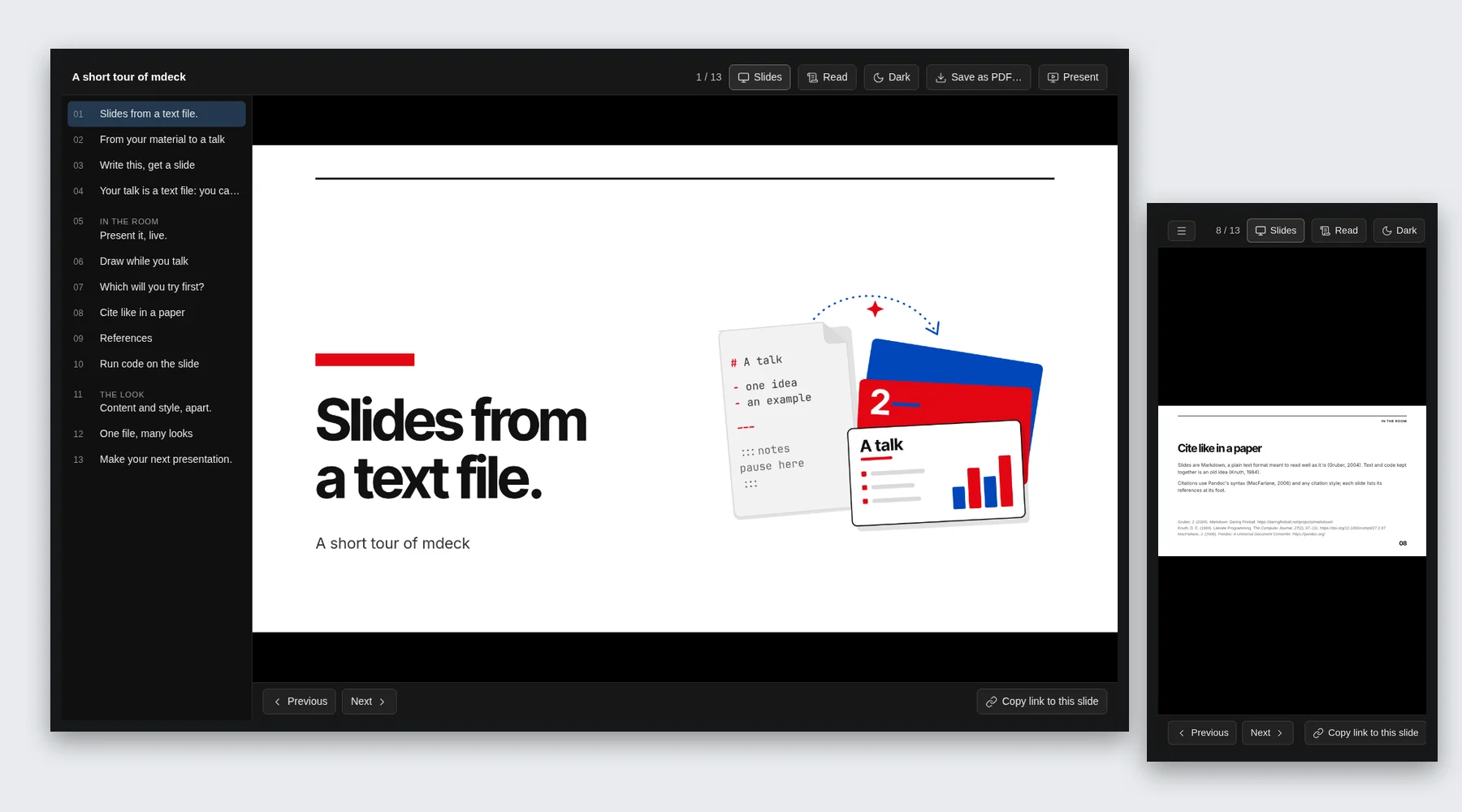
mdeck send makes a single HTML file for the people you send the talk to: an outline, a reading mode for phones, light and dark, and the PDF inside. It opens in any browser, also offline, and your speaker notes stay out. Send, host or print
Also: a presenter view with notes, timer and the next slide; points revealed one at a time; pictures, videos and formulas; a browser editor for those who prefer clicking; and a launch page (mdeck run) that gathers it all, with a check for missing pictures and slides that do not fit.
Bring your material, then shape it#
Put your files in a folder, open your assistant there, and point it at them:
/write-slides Turn lab-notebooks.pptx and my notes in notes.md into
a 15-minute talk for new lab students. Keep my examples, reuse the
photos from the old slides, and add one poll at the start.
The assistant reads your files, keeps your structure, facts and pictures, picks a layout for each slide, writes speaker notes from what you wrote, checks the file with mdeck, and tells you how to open it. From there you keep talking: “make slide 4 a big statement”, “use a dark look”, “the third section of the PDF is missing”.
The slides are a text file#
mdeck slides are written in Markdown, the format AI assistants already answer in. That is why they are good at it: no slide software to operate, no file format to reverse-engineer, just the kind of text they write all day. What the assistant writes looks like this:
# A small idea

Every good talk starts somewhere.

---

# What comes next?

- Explain the idea.
- Show an example.
- Invite questions.
The # makes a heading. The line with --- starts another slide. A dash before a sentence makes a list item. Knowing these few marks lets you fix a word in seconds without asking anyone. Read and adjust your slides explains the rest.
Find what you need#
- Starting from scratch? Follow Make your first presentation.
- Already use an AI assistant? Work with an AI assistant shows how to set it up for mdeck and how to ask for good slides.
- Already have a slide file? Learn to add pictures or change the look.
- Getting ready to speak? Set up your notes and audience screen.
- Want the room to take part? Ask your audience with polls, scales, word clouds and open questions they answer on their phones.
- Want to mark up a slide? Draw on your slides with a pen, a finger or an iPad pencil, live or ahead of time.
- Sending your talk to someone? Choose a sharing or printing option.
- Which view or server do I need? See Views, commands and servers.
- Something looks wrong? Try the troubleshooting guide.
Your file, whoever edits it#
Whoever writes the slides, your assistant, a text editor, or the built-in browser editor (mdeck edit), the file stays the single copy, and the preview updates as it changes. mdeck can also use layouts, themes and colours made for your team, and your assistant can make new ones for a single talk.
Keep this guide nearby#
Open these pages again with:
mdeck docsThe documentation runs on your own computer. No account or hosted service is needed.