 GitHub
Change the look
A theme chooses the fonts and the style of the slides. A palette chooses the colours, in a light and a dark version. You can change either without rewriting your slides.
Ask your assistant by name or by description:
Use the glass theme, light. Or suggest a look that suits a talk for
a design conference.
The settings it changes are the ones described below. To try looks before deciding, use the presenter view (see “Try a look before saving it”).
Choose a theme#
Put the theme name under theme in the settings at the very top of your file:
---
theme: neue
---
If you already have a settings block there, change the existing lines rather than adding a second block.
| Name to use | What it looks like |
|---|---|
neue |
Swiss style: large type, clear lines, red on white |
plain |
Black on white and lots of room, the heading beside the content |
minimal |
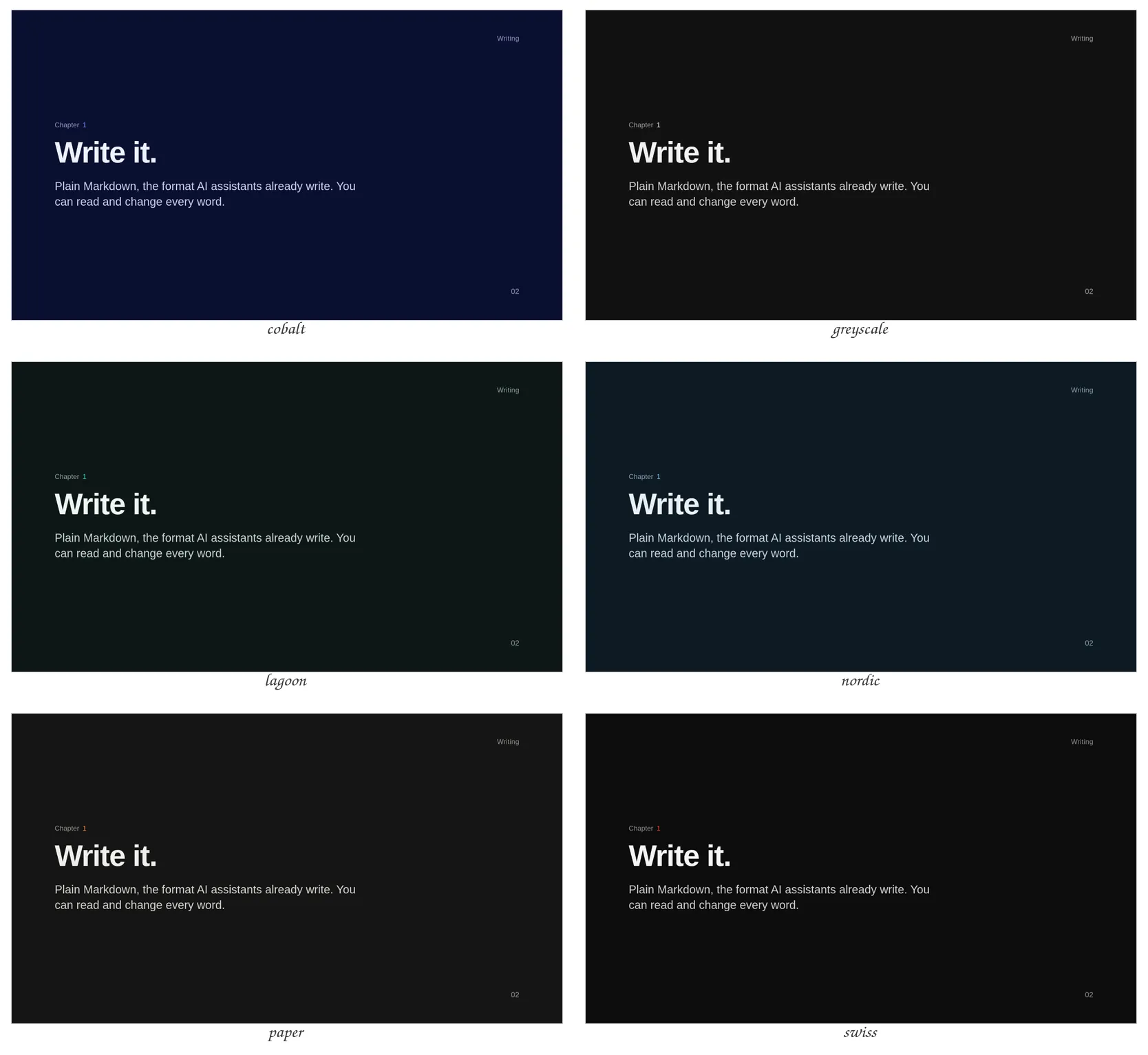
Nothing but the content: system fonts, calm type, no decoration; works offline |
academic |
A lecture: compact slides, theorem and definition boxes, tables like in a paper |
work |
An everyday company template: a coloured band, your logo, numbered sections, a footer |
glass |
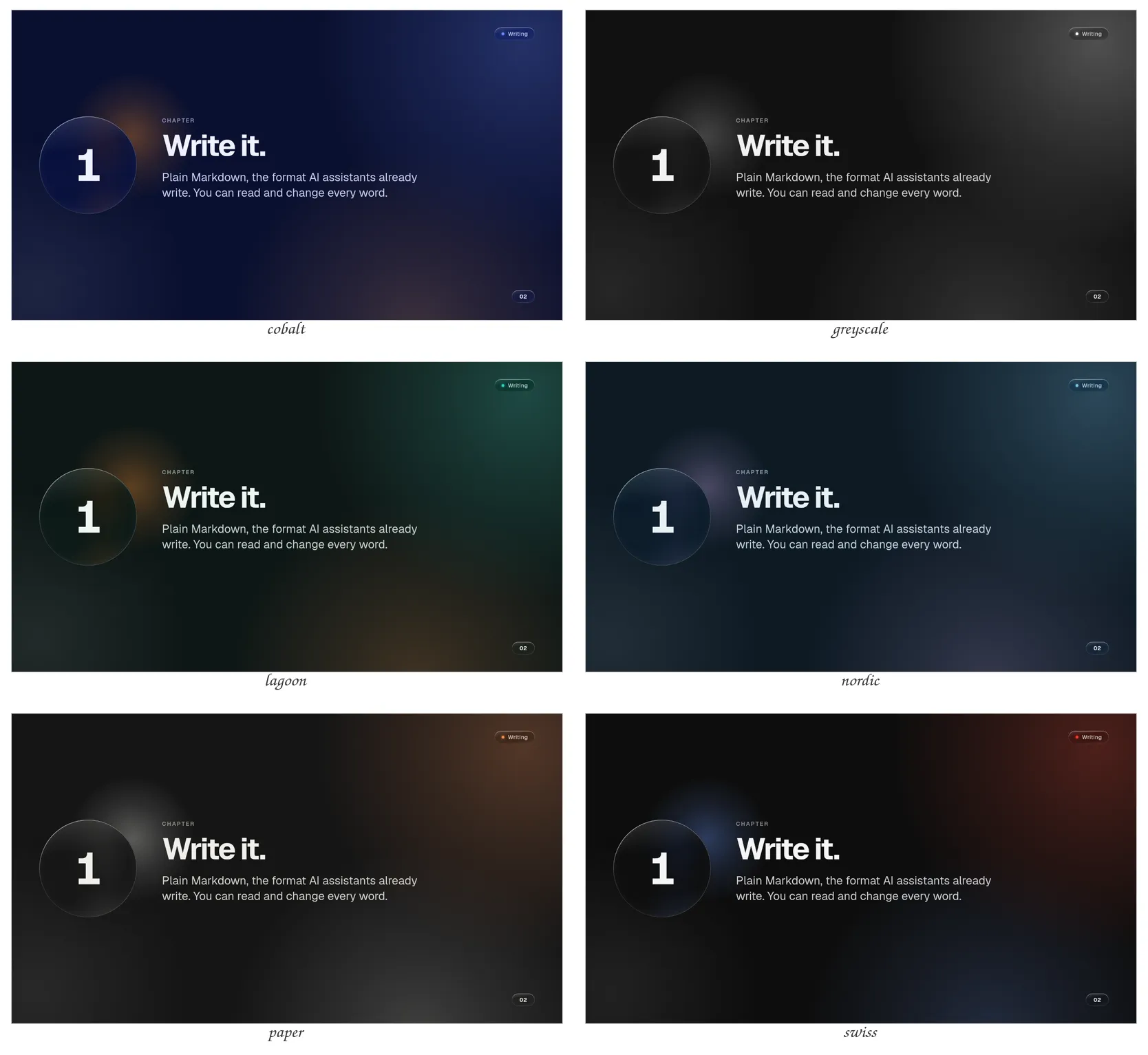
Liquid glass: soft light behind frosted panes; it starts dark |
Each theme comes with colours that suit it, so you do not have to choose any. More themes are in the theme repository (see “Themes that moved to the repository” below).
See the themes#
Each theme in its own colours, on the title slide of the tour example. Click a picture to see it larger.
Neue#
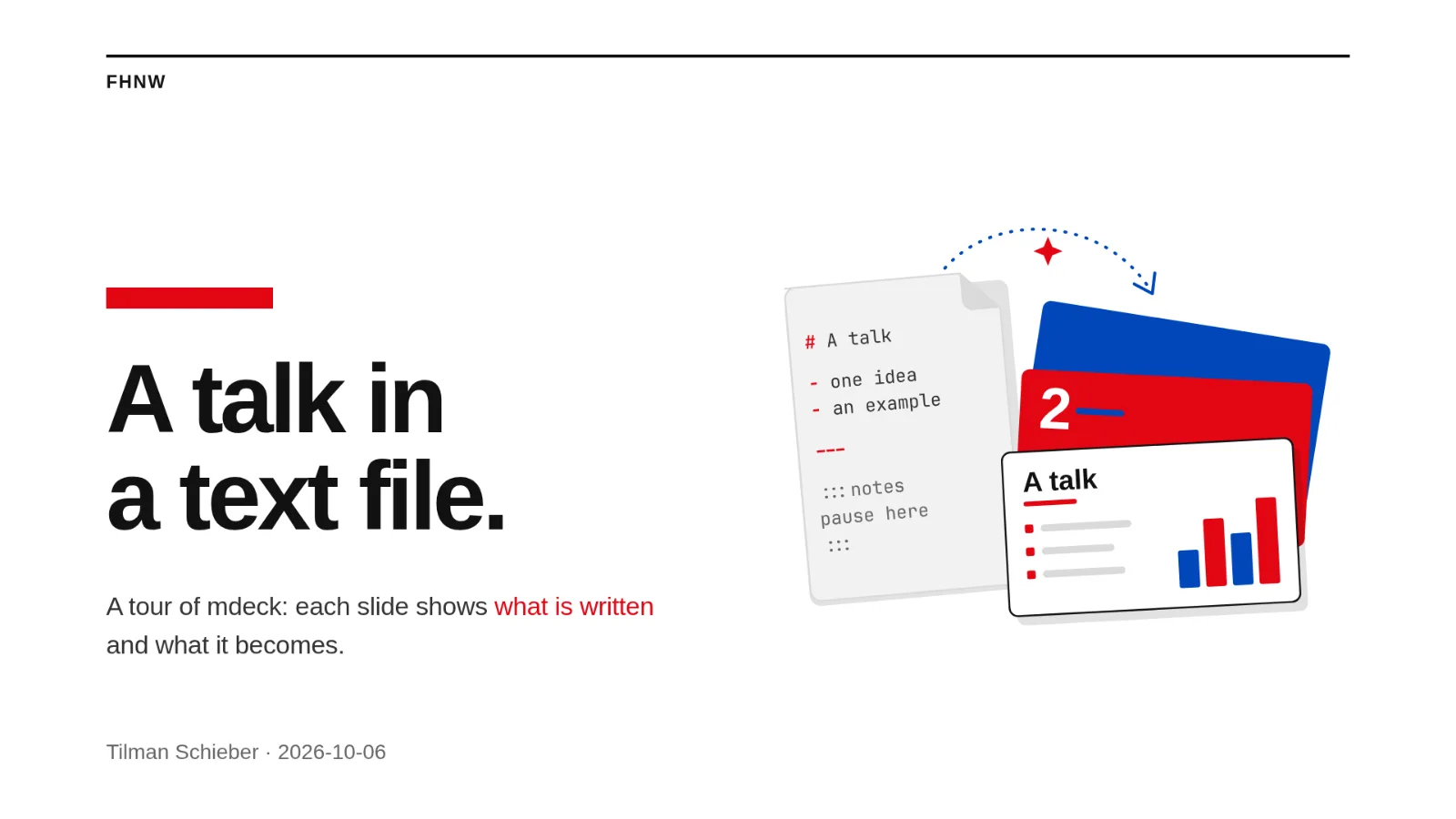
Default colours: swiss.
Plain#
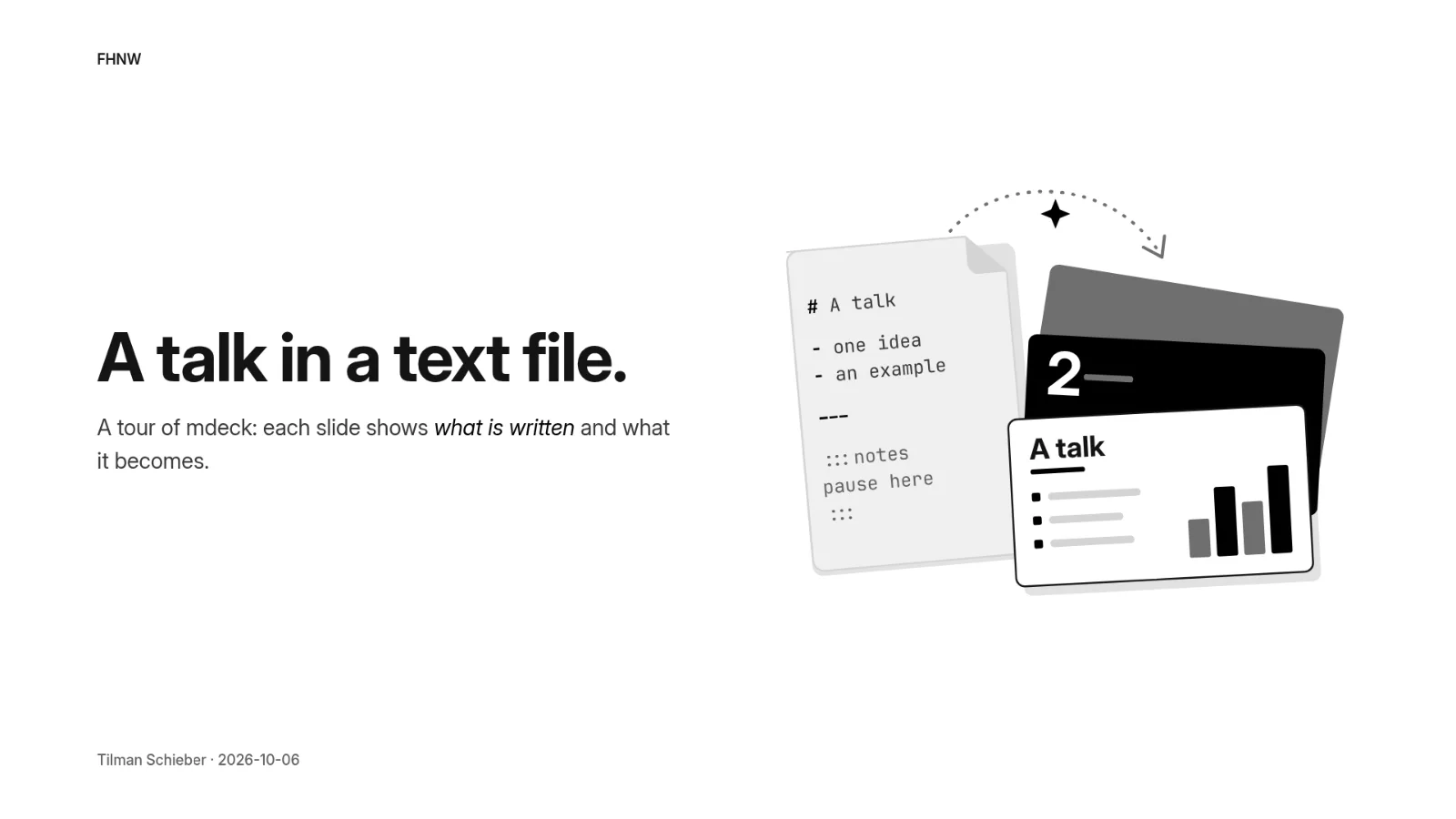
Default colours: greyscale. In the dark it is the same, inverted.
Academic#
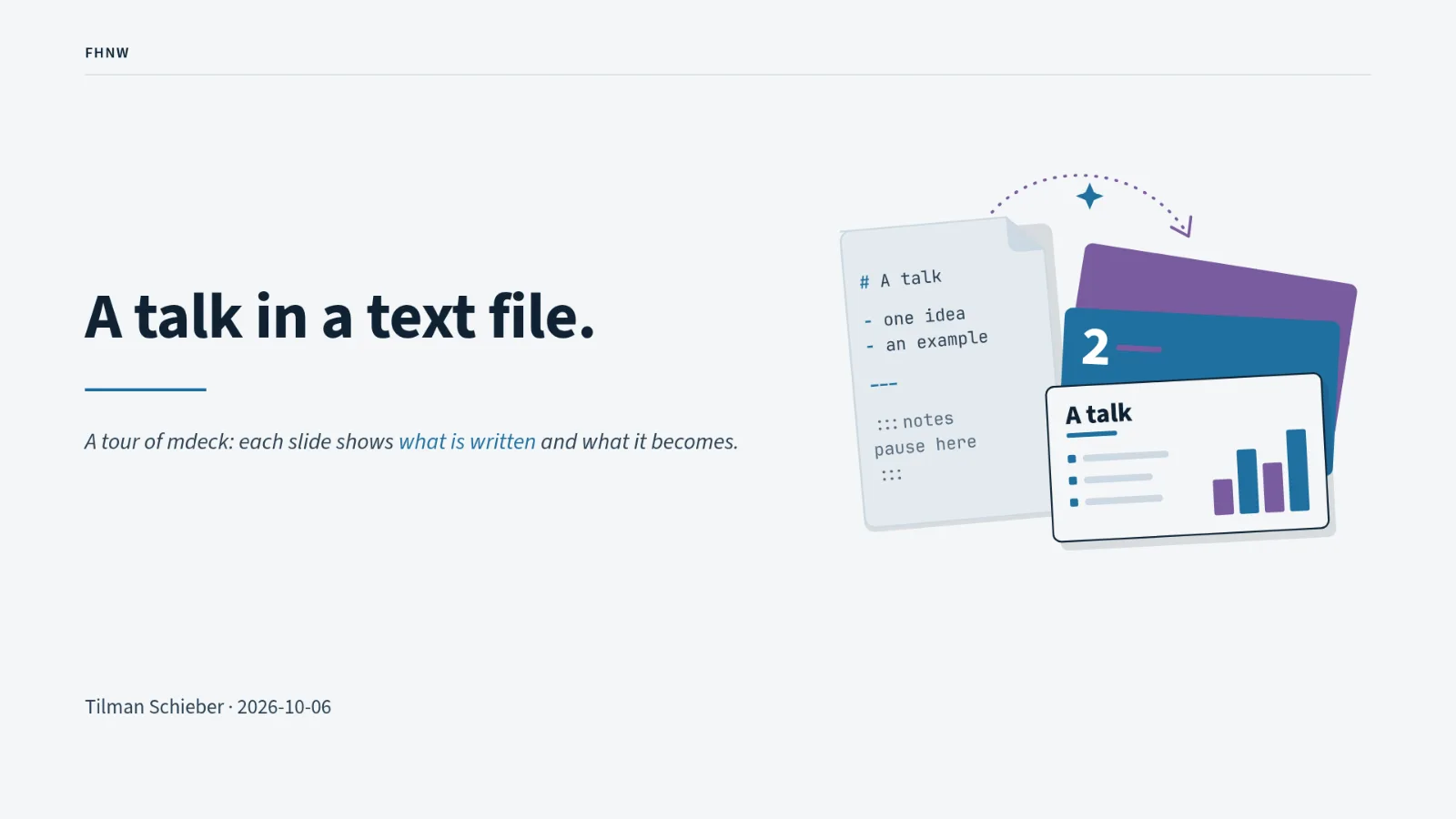
Default colours: nordic.
Minimal#
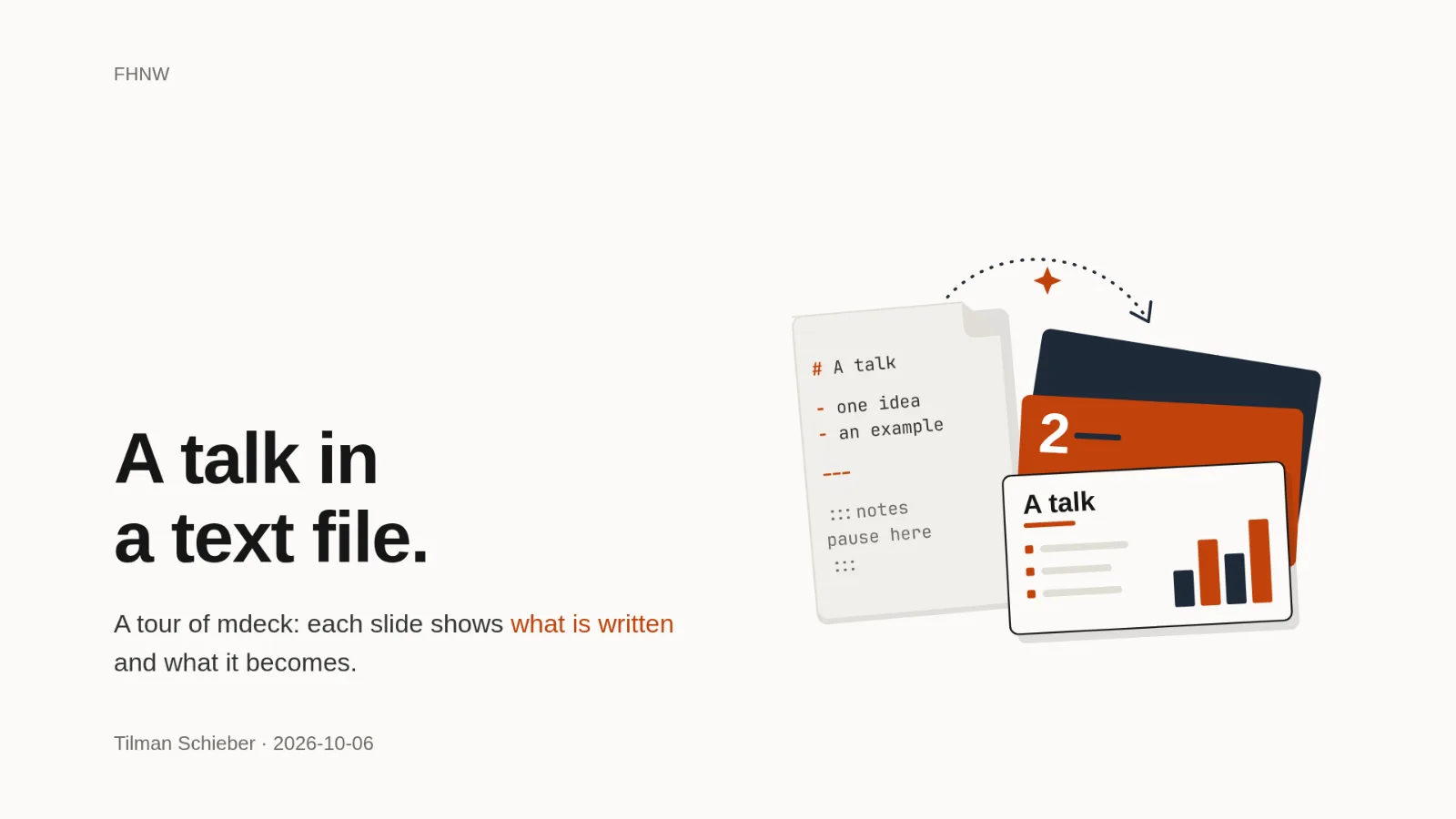
Default colours: paper. It uses the fonts already on the computer, so it needs no internet connection and looks plain on purpose.
Work#
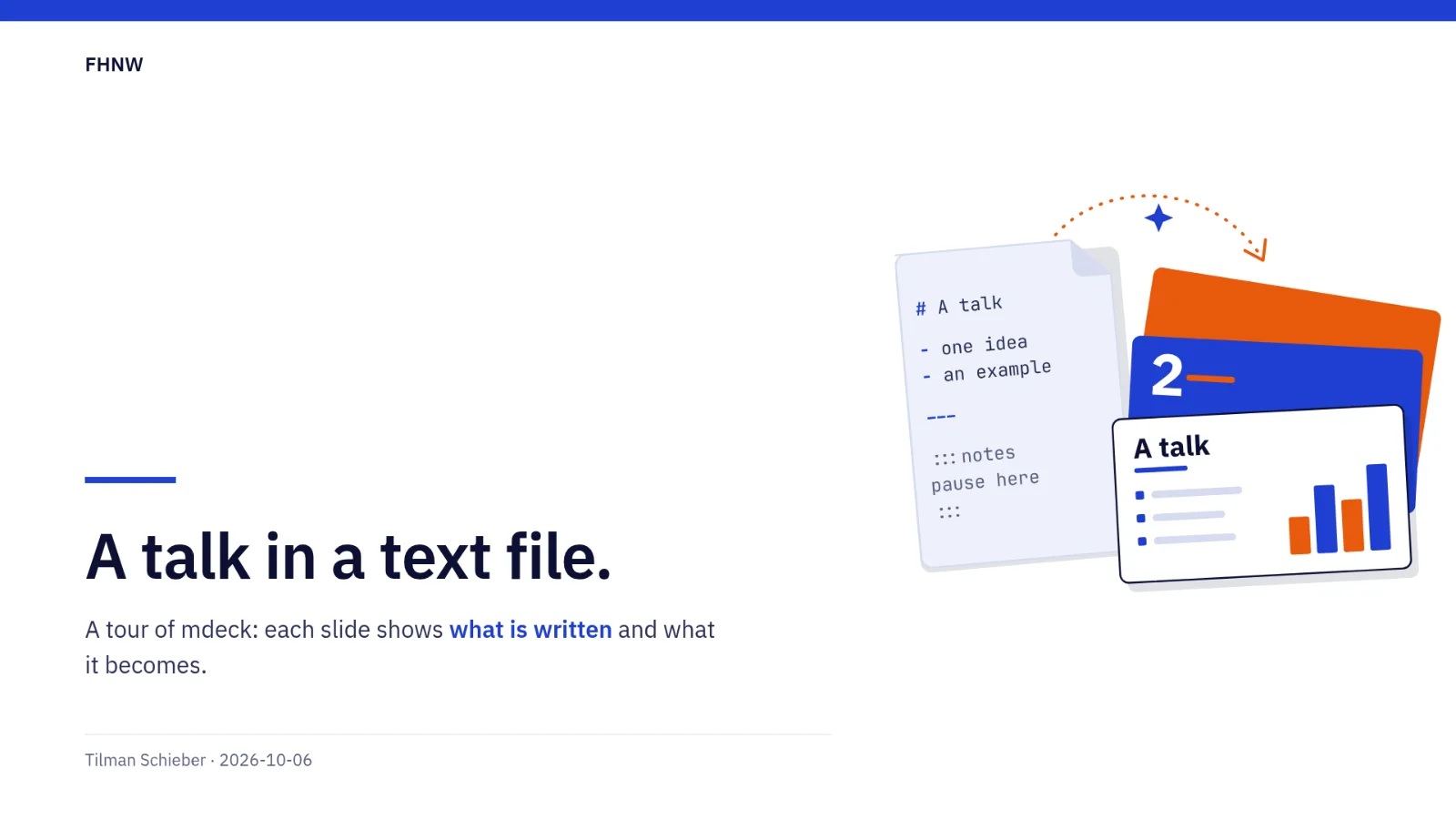
Default colours: cobalt. Set meta.logo and it shows top left; any palette makes it your company's colours.
Glass#
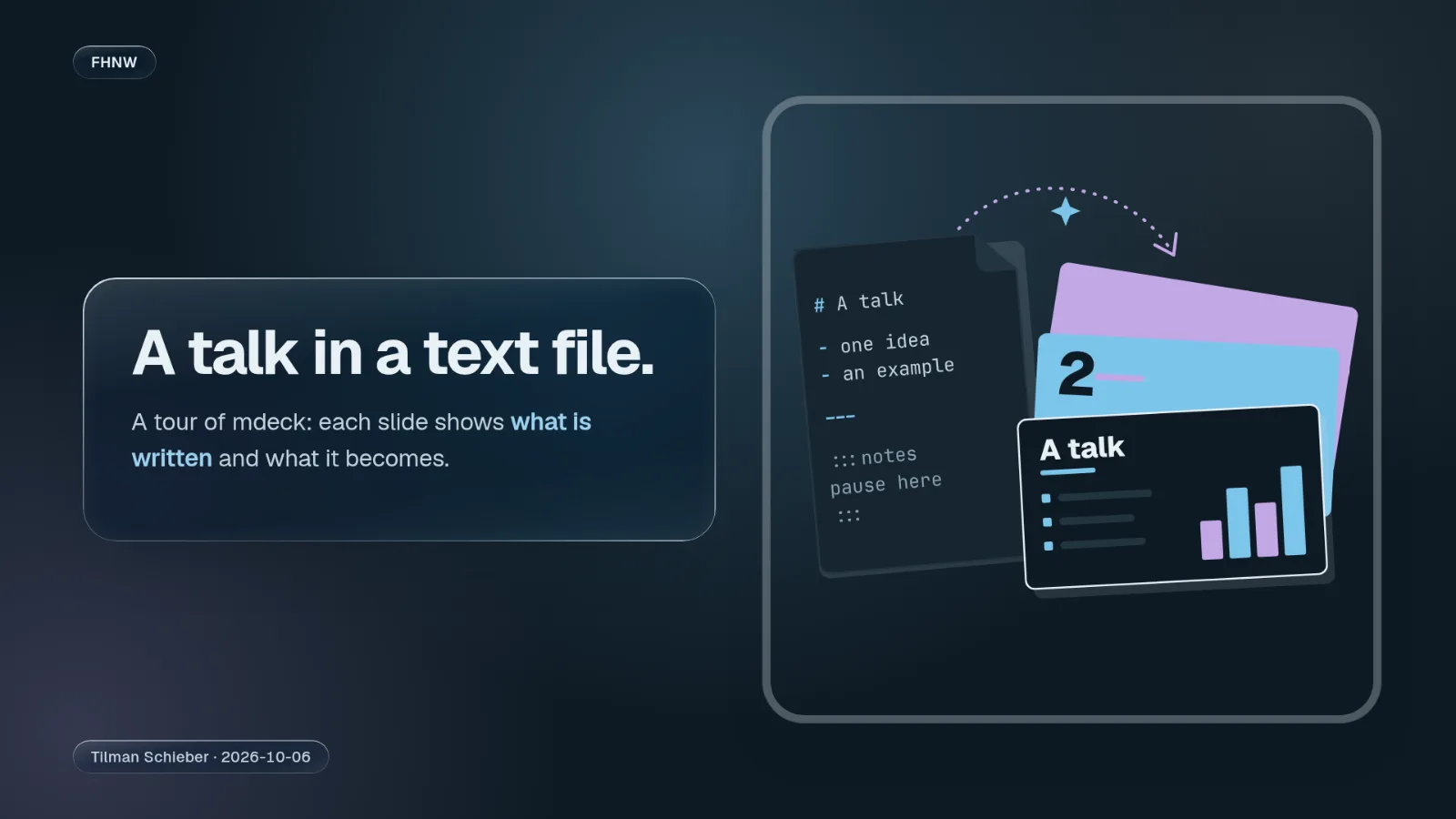
Default colours: nordic, dark.
Choose colours#
To use other colours, set palette to one of these:
| Name to use | Colours |
|---|---|
swiss |
White, black and signal red (neue's own) |
nordic |
Ice grey, deep navy and a cool steel blue (academic's and glass's own) |
cobalt |
Strong ultramarine on white with vivid orange (work's own) |
greyscale |
Black, white and greys only, good for printing (plain's own) |
lagoon |
Teal on warm stone |
paper |
Off-white and near-black with one orange accent (minimal's own) |
---
theme: neue
palette: paper
---
Light or dark#
Every palette has a light and a dark version. Choose dark for a dark lecture hall, light for a bright room:
---
theme: neue
palette: nordic
appearance: dark
---
Some slides use the other version on purpose: neue's statement slides are dark in a light talk and light in a dark one.
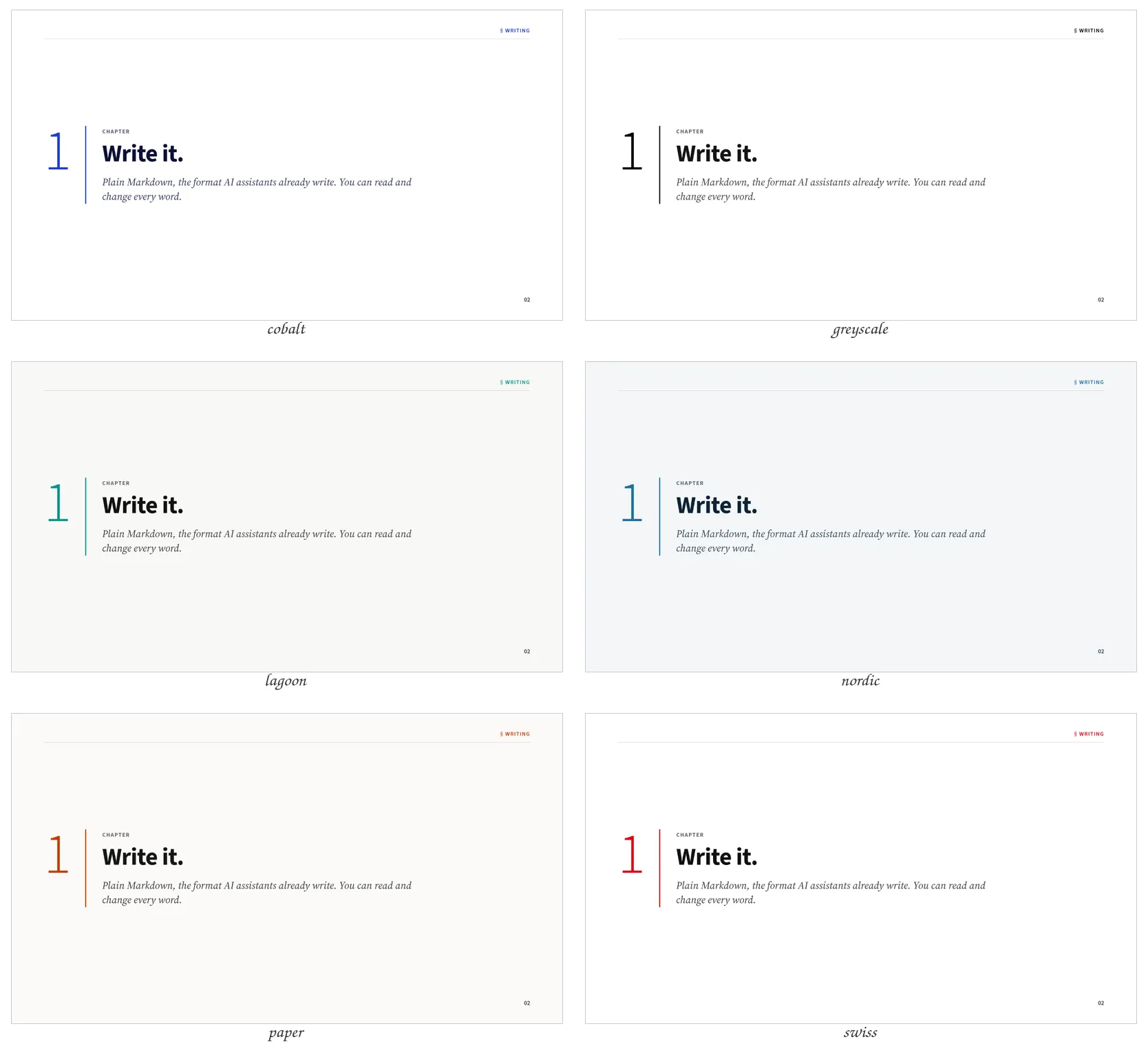
Every theme in every palette#
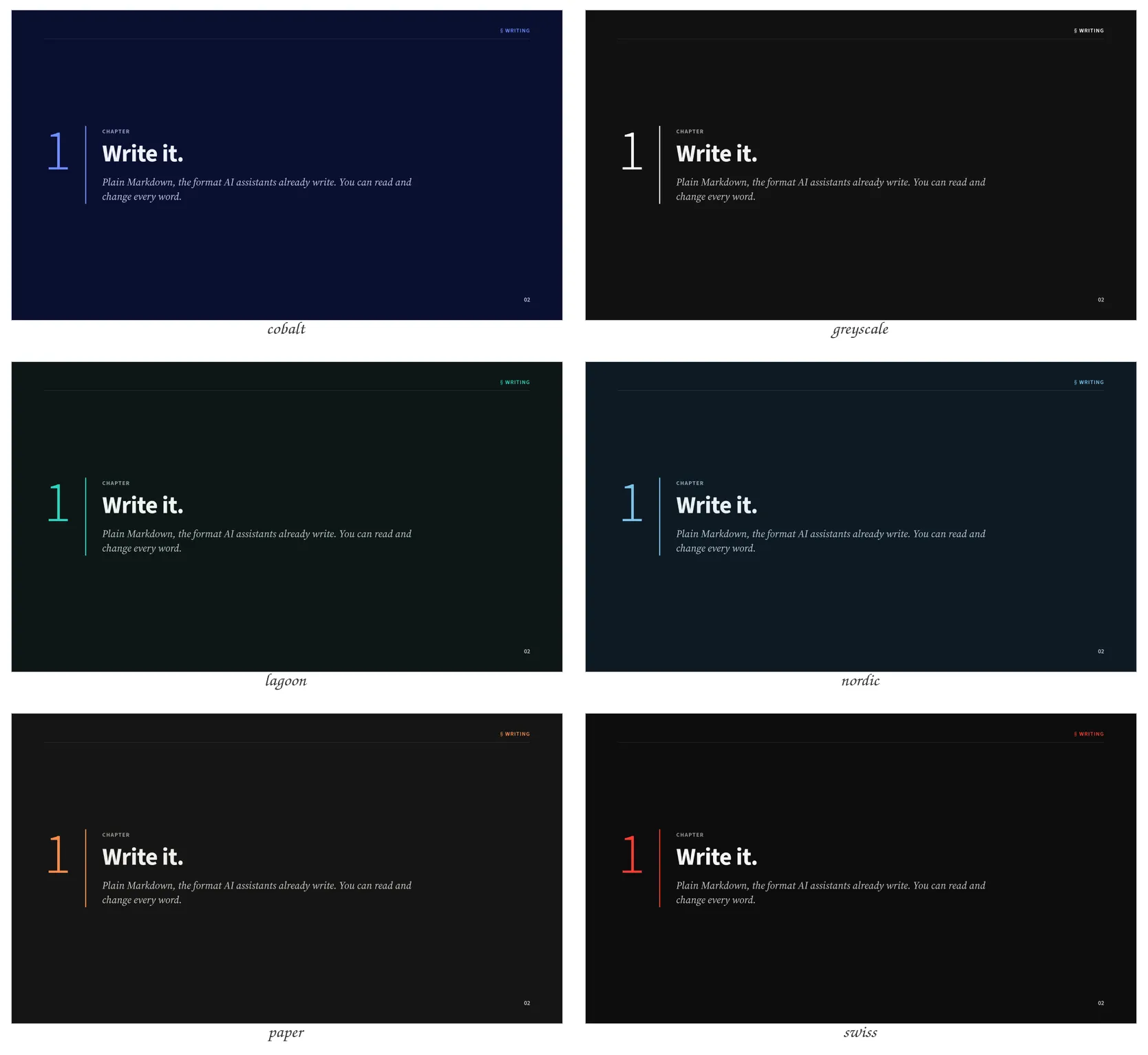
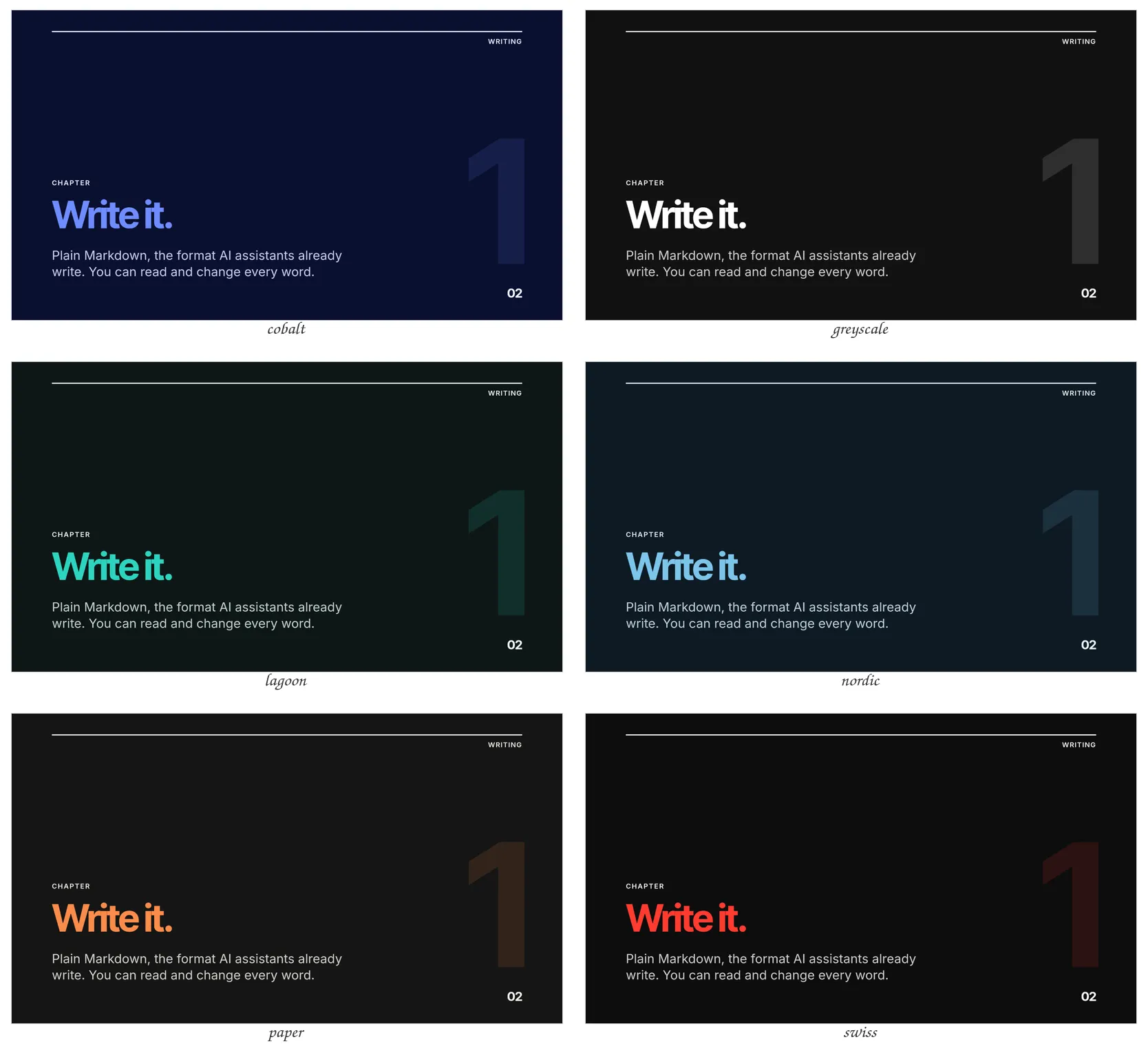
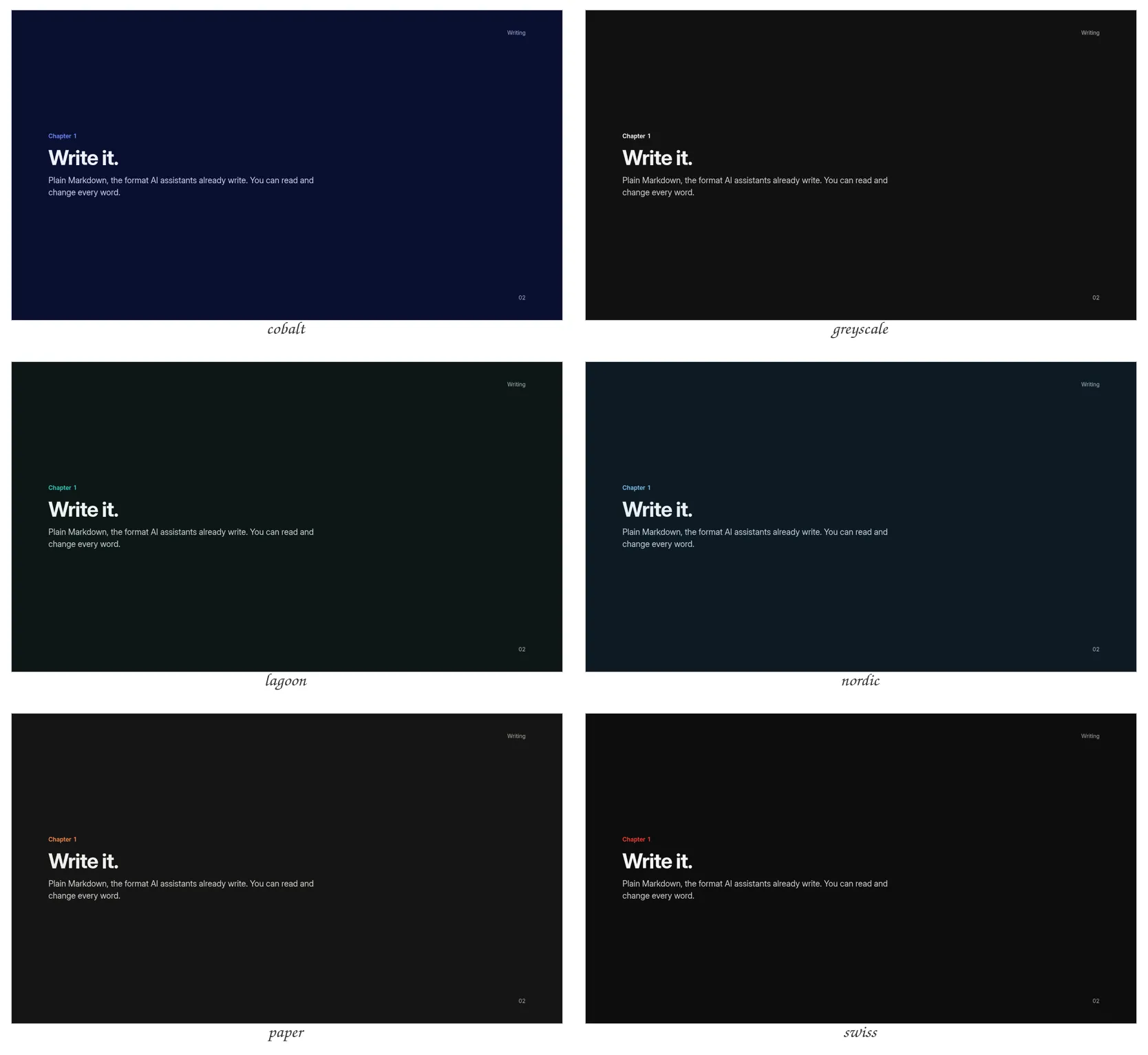
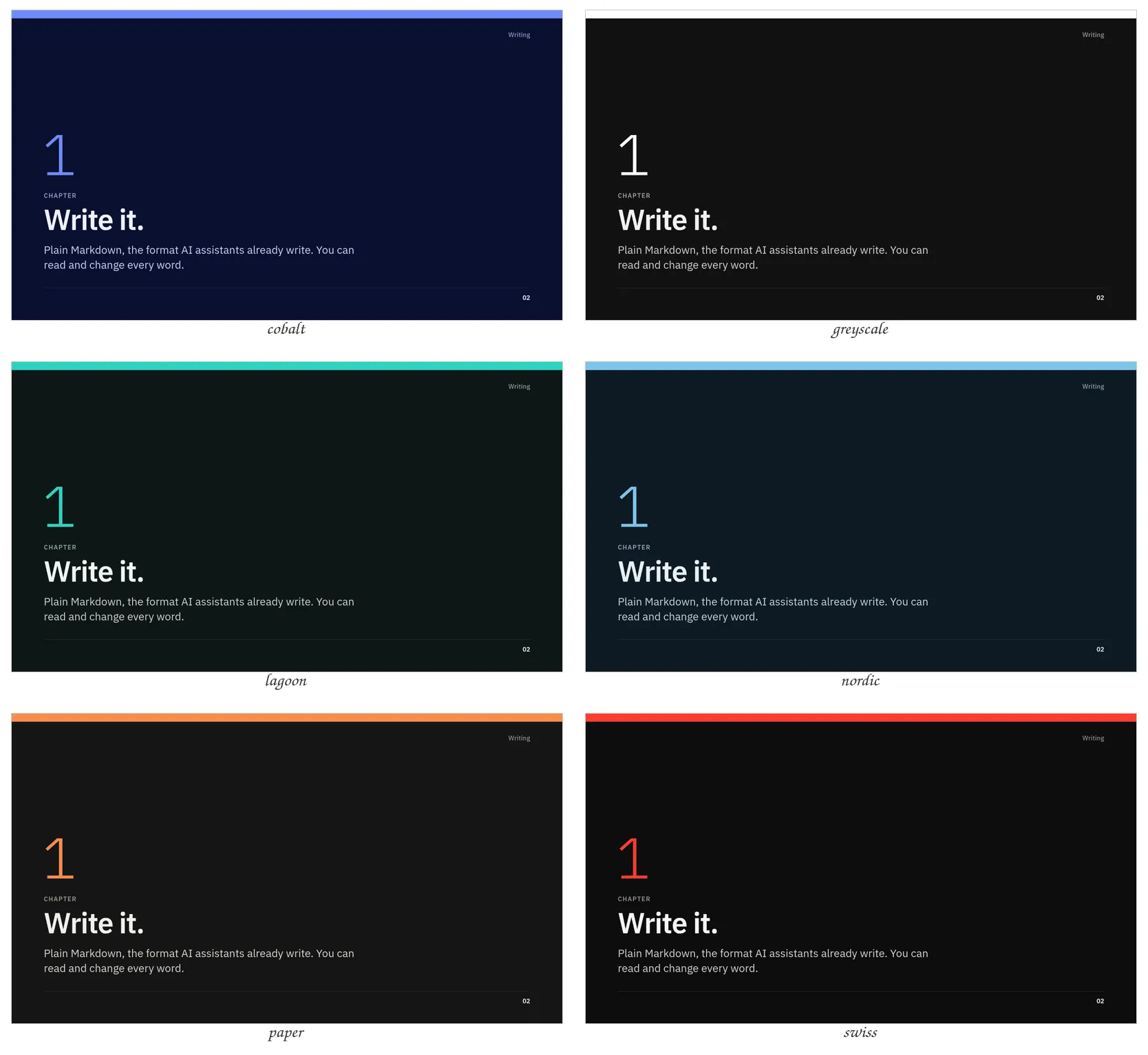
The first chapter slide of the tour in each palette a theme offers. Choose a theme above the pictures; click a sheet to see it larger. A theme that offers only its own colours is not shown here.
Light#
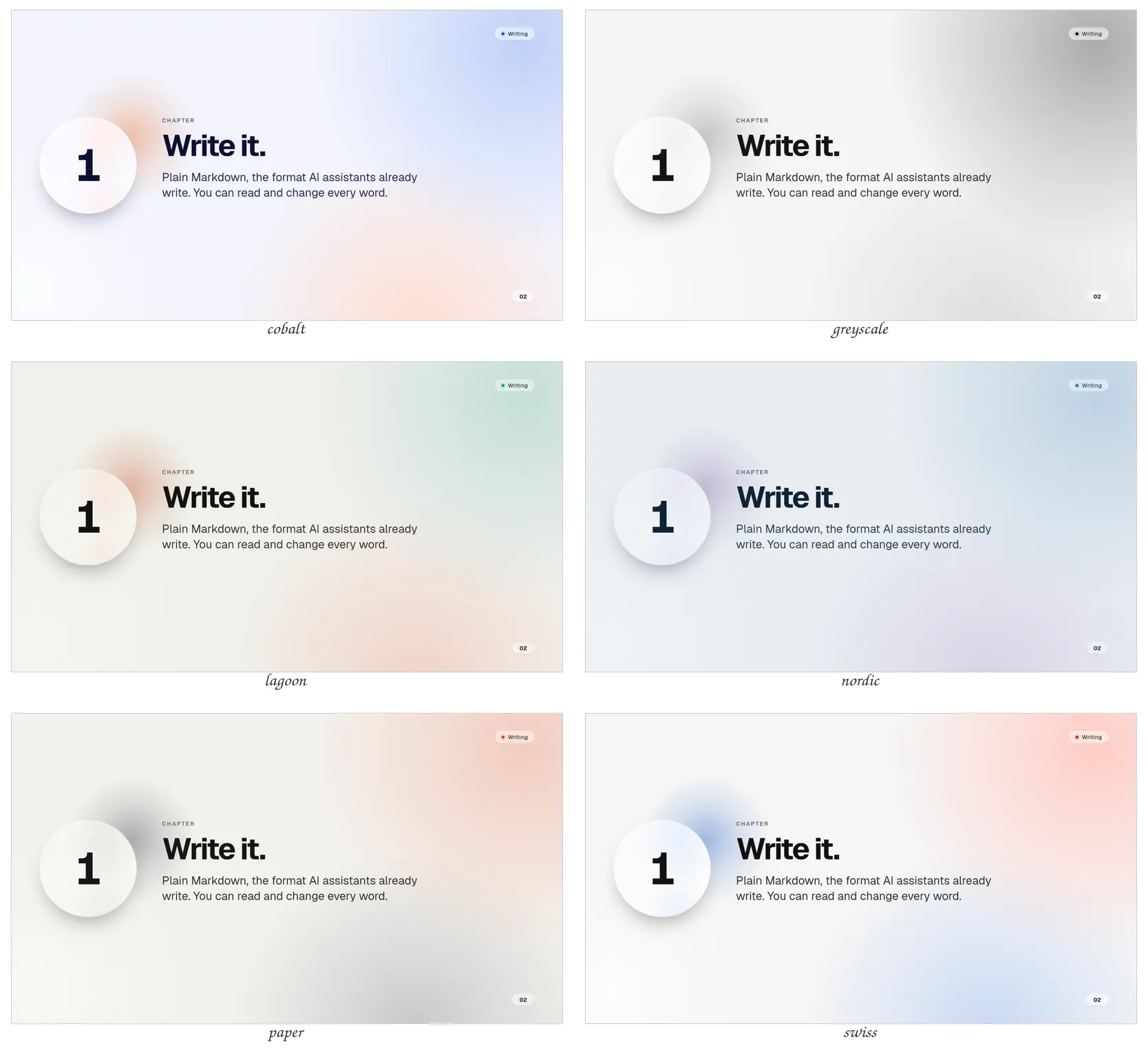
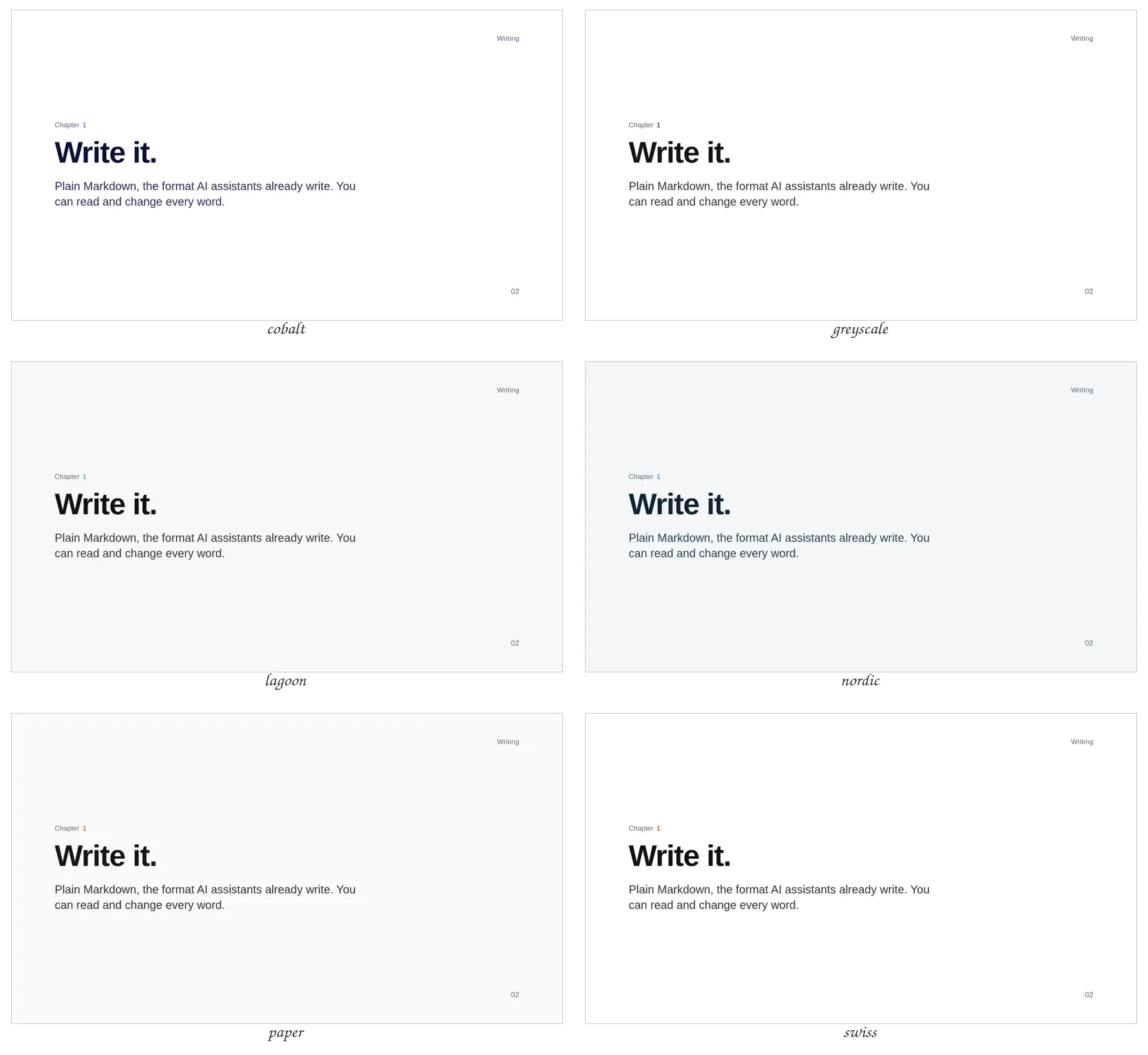
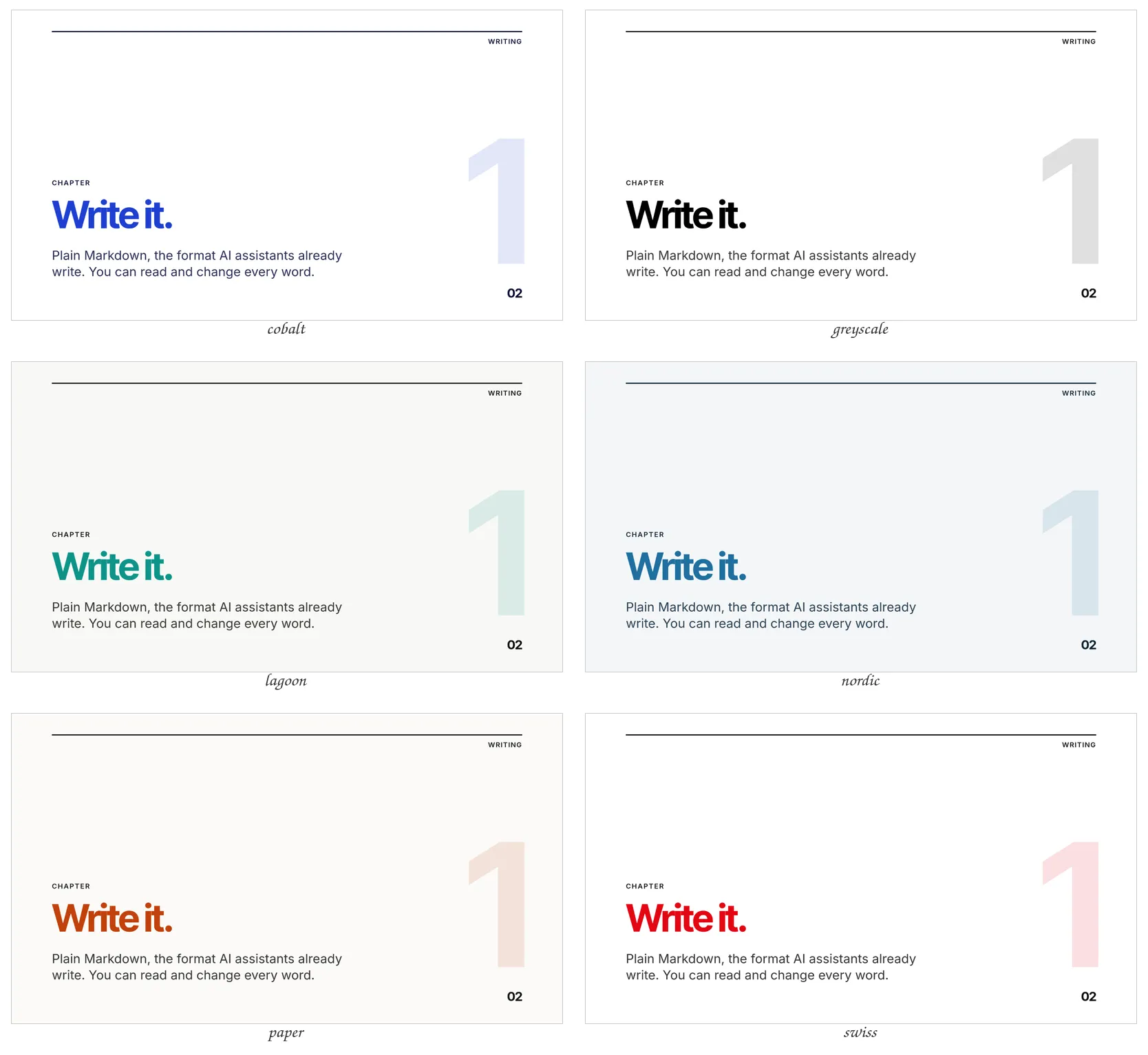
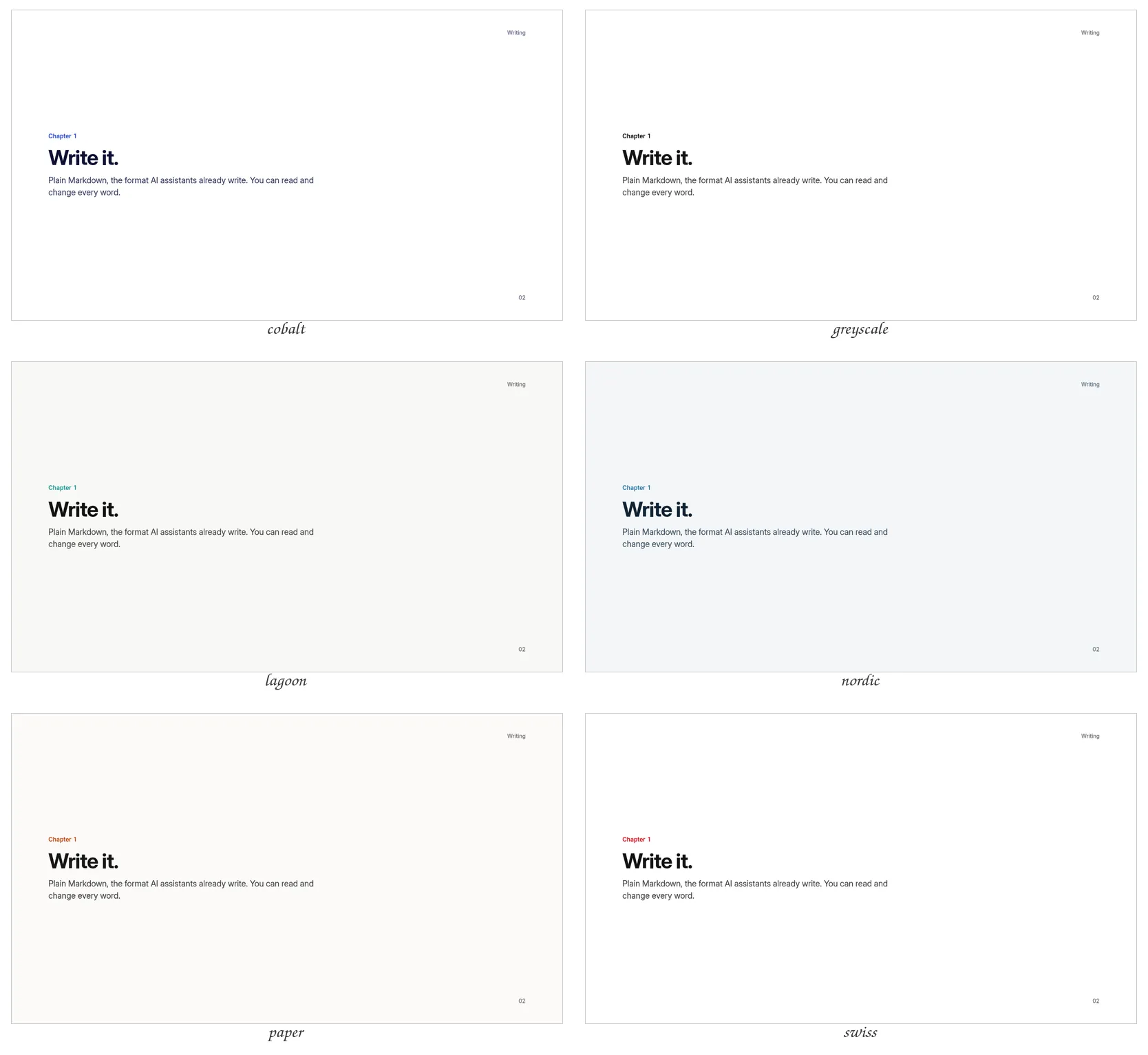
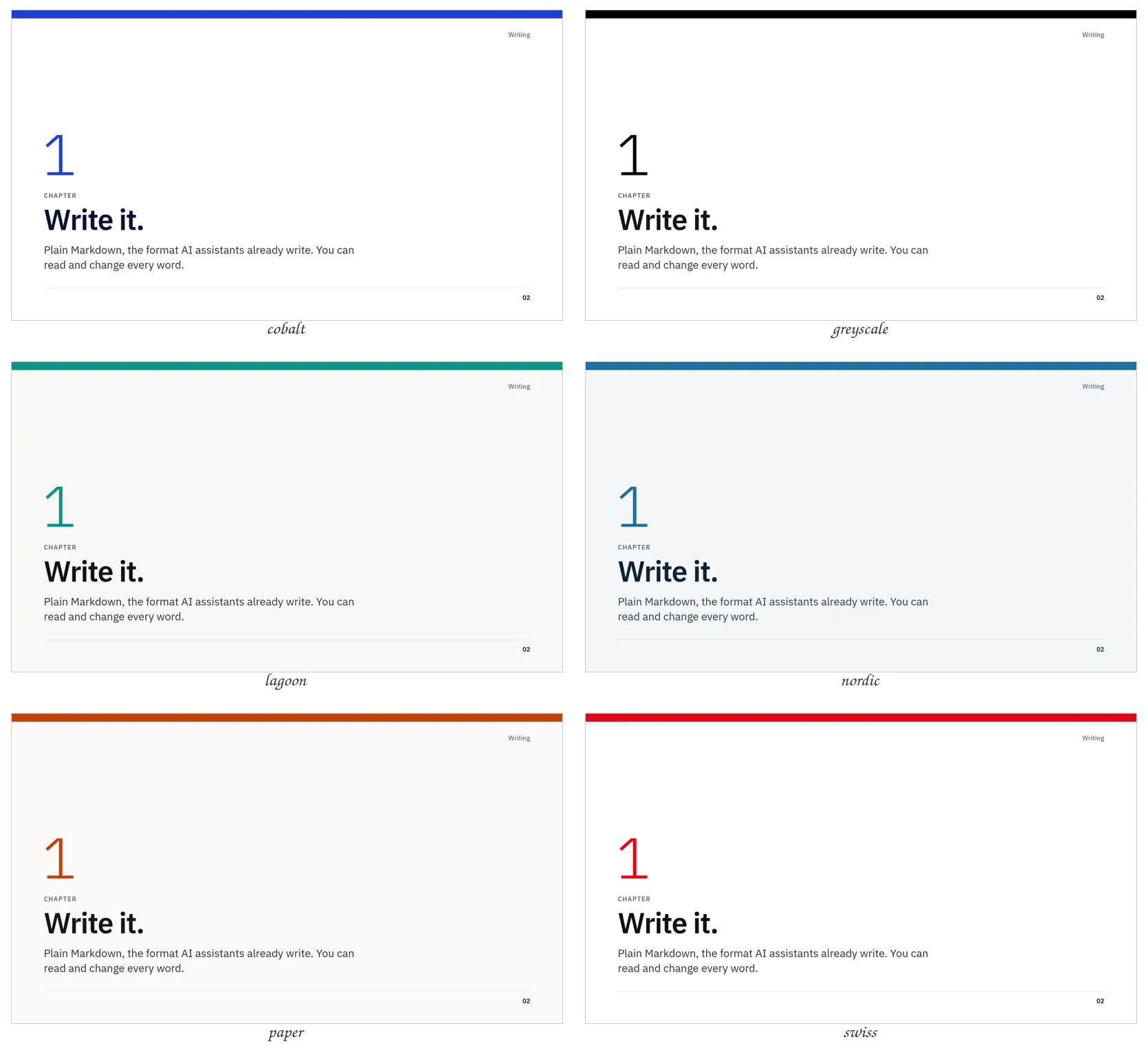
Dark#
Try a look before saving it#
Open the launch page and choose Presenter view:
mdeck run my-talk.mdIts settings (the slider button at the top) let you try other themes, palettes and light or dark. These changes are a preview: they do not save back to your text file. Once you find a look you like, put its settings in the file and save.
More themes from other people#
The themes above come with mdeck. The theme repository has more: mdeck themes search and mdeck palettes search list them, and mdeck themes install <theme> installs one for all your decks, with its palette. You can also remove the ones you never use; see Install, remove or share a theme.
Themes that moved to the repository#
Earlier versions of mdeck came with more themes and palettes. They are now in the theme repository:
| Theme | What it looks like (its palette) |
|---|---|
aurora |
Northern lights: curtains of light, night-sky chapters (neon) |
duet |
Two accent colours that take turns, slab headings (cobalt, which comes with mdeck) |
editorial |
A magazine spread with serif headlines and pull quotes (terra) |
fhnw |
The FHNW visual identity, with its own brand palette only |
terminal |
Headings typed at a prompt, a status bar; it starts dark (phosphor) |
sketch |
Handwriting, marker scribbles, sticky notes (pastel) |
The palette forest is there too: mdeck palettes install forest.
The palettes graphite and ember were removed: use nordic or paper, which come with mdeck and look almost the same.
A deck that still names one of them stops with a message that tells you what to install, for example:
mdeck themes install duetAdd your name and organization#
---
theme: neue
meta:
  title: "A place to grow"
  author: "Alex Morgan"
  organization: "The garden team"
  date: "12 June 2026"
---
The text on the title slide still comes from the heading you write on that slide. The settings above supply information for the slide's header and footer.
You can also add logo: ./img/logo.png inside the meta group. The logo appears on the title slide, and on every slide with show.organization: all (below). On dark slides the logo is inverted, so a black logo turns white; a coloured logo's colours turn around with it. If that is not how your logo should look, add a second one made for a dark ground as logo-dark: ./img/logo-white.png: dark slides show it as it is, light slides keep the first. (A palette can instead keep one logo as it is on dark slides with "--logo-filter" = "none" in its [dark] block.)
Control headers and page numbers#
These settings go together under show, in the deck settings:
show:
  organization: none
numbers: all| Setting | Choices | Usual behavior |
|---|---|---|
show.organization |
title, all, none |
Organization and logo appear on the title slide |
show.author |
title, all, none |
Author and date appear on the title slide |
show.numbers |
slides, all, none |
Numbers appear after the title slide |
show.sections |
all, none |
Section labels appear when provided |
Change the slide shape#
The usual shape is widescreen, with a width of 1920 and height of 1080. For a classic 4:3 shape, set:
width: 1920
height: 1440
Check your slides after changing their shape. A layout that fit before may need fewer words or a different picture crop.